How it works
See how Kinovah works, step by step.
From coordinating everyday care to understanding online risks and preparing your digital legacy, explore what you can do inside Kinovah.
Free Early Access
Free Early Access · No credit card required
Care
Available nowKeep everyone involved in care on the same page.
Kinovah Care helps families coordinate everyday support in private workspaces — tasks, schedules, medications the family is working from, and short updates. One account can help more than one family.
- 01
Create or join a family
Start a private family care space, or accept an invitation to help someone you love.
Create a free Kinovah account, then start a family workspace or accept an email invitation. One login can belong to more than one family. Owners and admins invite people. Roles — Owner, Admin, Caregiver, and Member — limit what each person can change and see inside that family.
Invitations, roles, and caregiver permissions
Care records belong to the family, not to one login. An owner creates the workspace. Owners and admins send invitations by email. Caregivers handle day-to-day care work such as tasks, notes, and schedules. Members stay informed, complete assigned tasks, and can add notes. Someone outside the family cannot open that family’s care records.
- 02
Move between the families you help
When you care for more than one household, switch workspaces without signing out.
Use the family switcher in Care to choose which family’s records you are working in. My Care Families lists every family you belong to, with your role and what needs attention. All Families Today gathers open work across those families so you can see the day at a glance, then open the right workspace.
Multi-family Care, still private per family
Switching families changes which private workspace is active. Counts and lists come from families you already belong to. Each family’s tasks, notes, medications, and documents stay isolated — membership in one family does not grant access to another.
- 03
Add someone receiving care
Create a care profile with the information your family needs to coordinate everyday support.
Add a loved one’s profile as the home for appointments, medications, care notes, documents, and emergency details. Only active members of that family can open those records, within their role.
What a care profile holds
A care profile is where the family keeps the practical details used for coordination — schedules, medications the family is working from, short updates, documents, and emergency information such as allergies, conditions, a preferred hospital, and who to call. It is shared inside the family workspace, not publicly.
TodayIllustrative example · Sample data - 04
Organize daily responsibilities
Create tasks, assign responsibilities, and keep track of what needs attention.
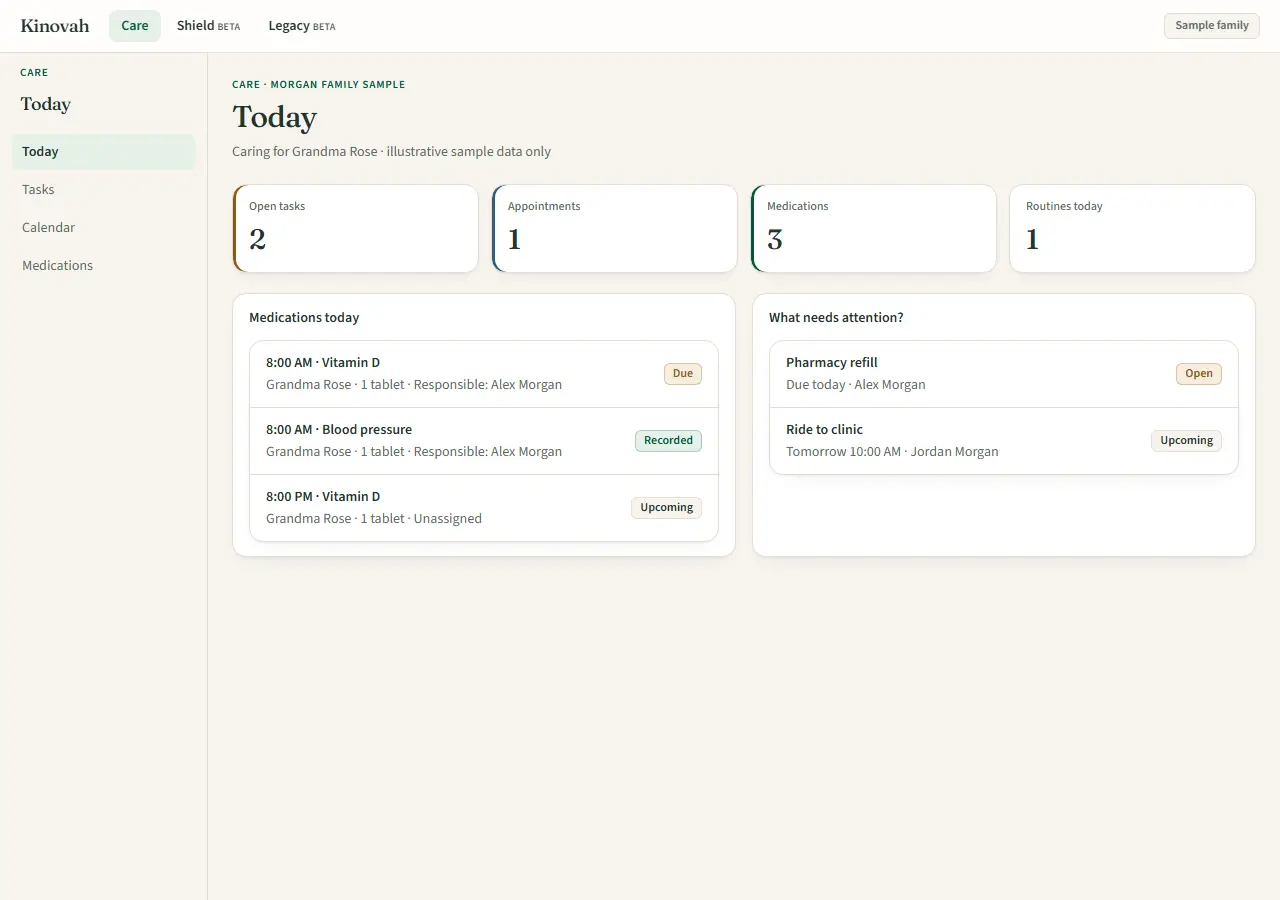
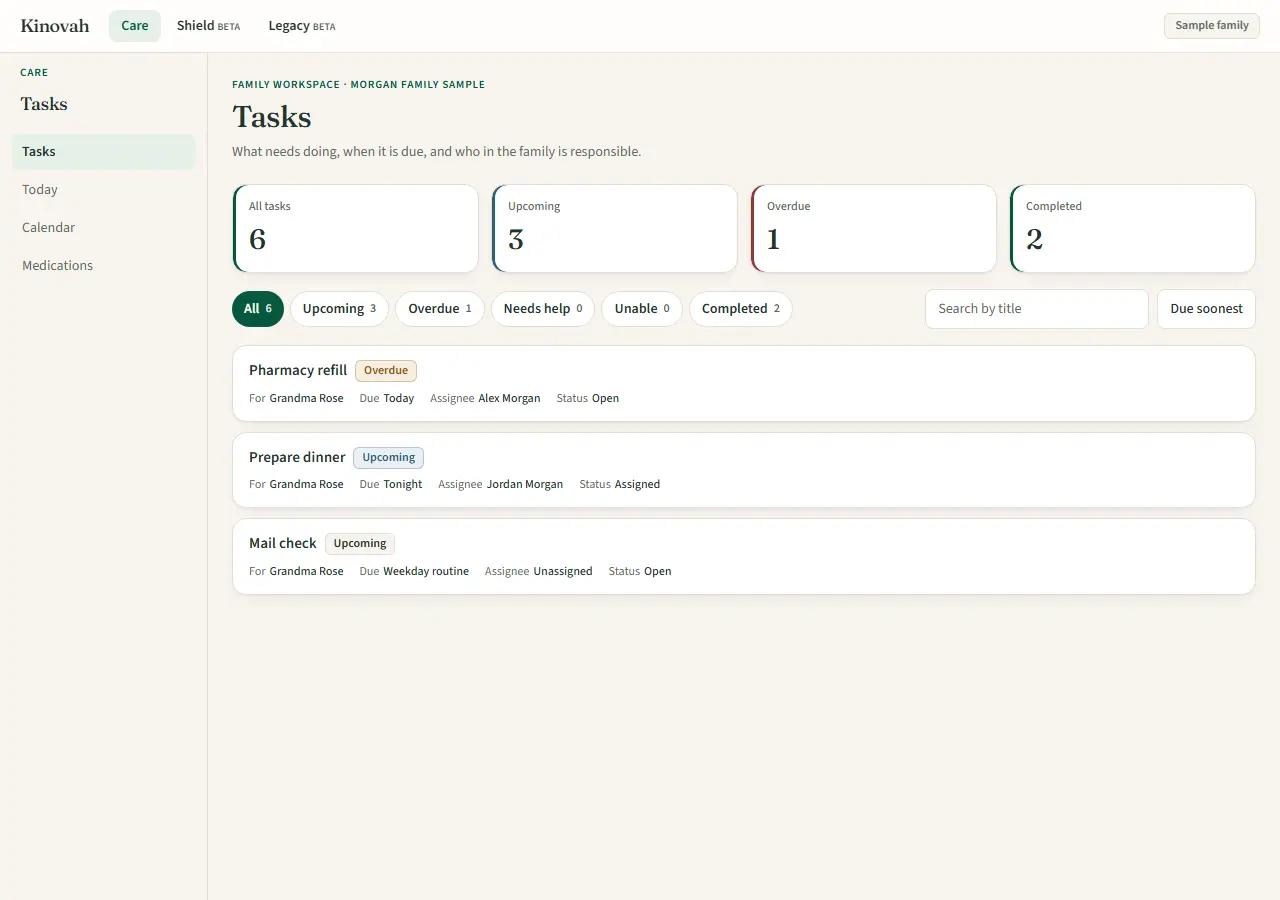
Owners, admins, and caregivers can create tasks with due dates, priorities, and an assignee. Members can complete work assigned to them. The Today view highlights what is overdue, due today, or coming up in the next seven days.
Tasks and permissions in practice
Tasks help the family divide rides, errands, visits, and follow-ups. Each task can show who is responsible and when it is due. Completing a task — or marking that help is needed — keeps the shared list current for everyone with access in that family.
TasksIllustrative example · Sample data - 05
Coordinate medications and appointments
Keep schedules and care-related information organized so authorized family members can stay informed.
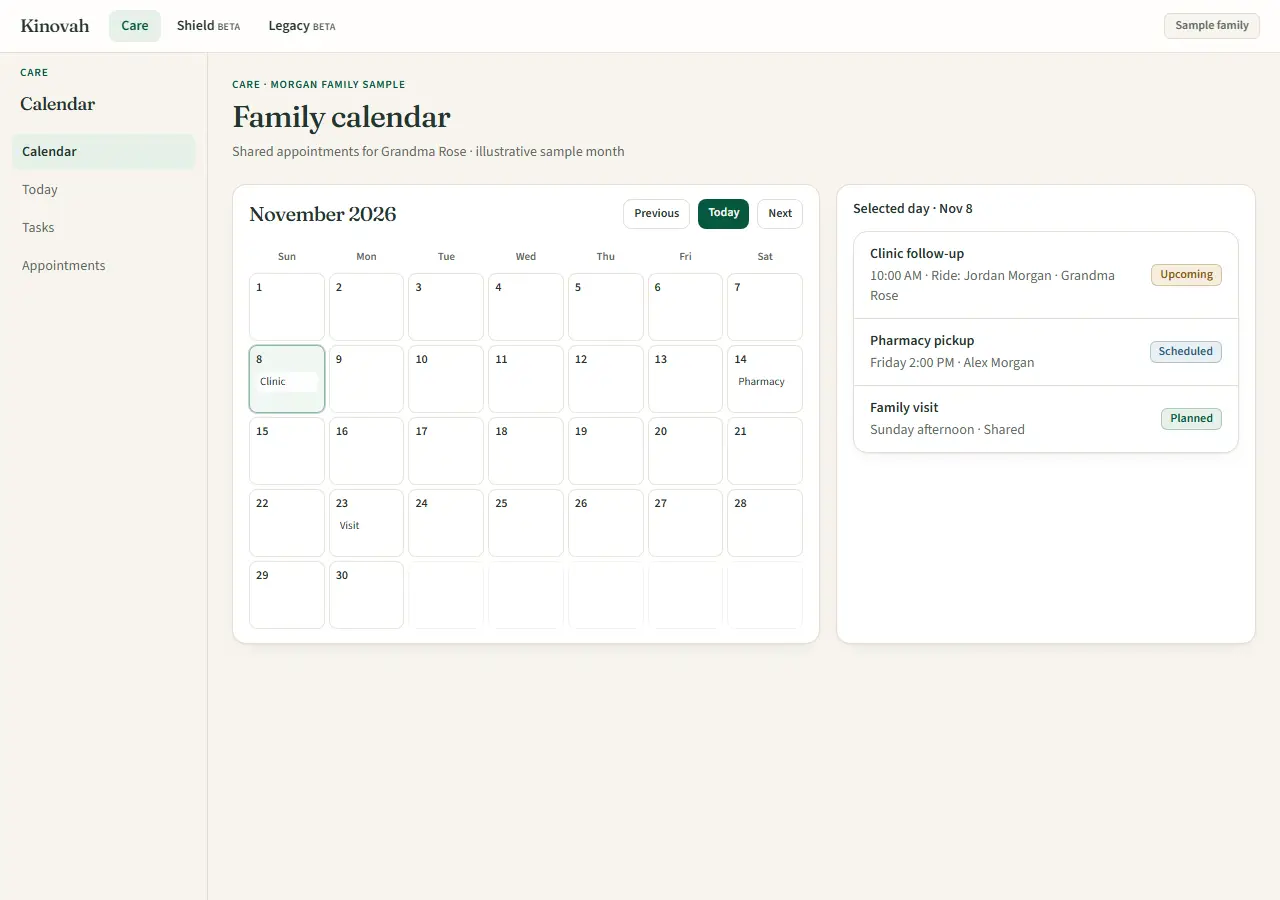
Record medications and the schedule the family is working from, and keep appointments on a shared calendar. Medication history shows what family members recorded as completed or skipped — it is family-recorded, not medically verified. Kinovah supports coordination and reminders. It does not diagnose, treat, or replace a clinician.
Coordination, not clinical care
Use medications and the calendar so rides, visits, and dose schedules are not trapped in one phone. Optional reminders help people stay on top of assigned work. Kinovah is not a licensed medical service and does not give medical advice.
CalendarIllustrative example · Sample data - 06
Keep the family informed
Use shared updates, care notes, and activity information to understand what has happened and what still needs attention.
Leave care notes, caregiver handoffs for the next person, and family discussion threads. Type @family when you want a notice to reach everyone else in the family. A weekly family summary looks back over the last seven days in the app, with an optional Sunday email that shares counts and a link — not private details.
Updates without a group text scramble
Care notes and handoffs keep short updates where the family can find them. Discussion threads keep replies together. The weekly summary helps people catch up without digging through messages.
- 07
Manage ongoing care
Return to your Care workspace to review upcoming responsibilities, appointments, and important information.
Open Today for the next week’s responsibilities, the calendar for appointments, medications and routines for repeating home help, documents for important papers, and emergency information — including a printable one-page emergency card. When you help more than one family, return to My Care Families or All Families Today to choose where to work next.
Everyday return points
Most people come back to Today, Tasks, Calendar, and Medications inside the active family. Daily care routines cover repeating responsibilities such as meals or a weekday mail check. Emergency details stay where authorized family members can find them quickly.


Shield
BetaUnderstand potential digital risks before they become bigger problems.
Kinovah Shield (Beta) gives families practical tools for scam reports, message checks, known breach lookups, family warnings, and plain-English education.
- 01
Open your Shield overview
See the Shield tools in one place: scam reporting, message checks, email and password checks, family alerts, and learn guides.
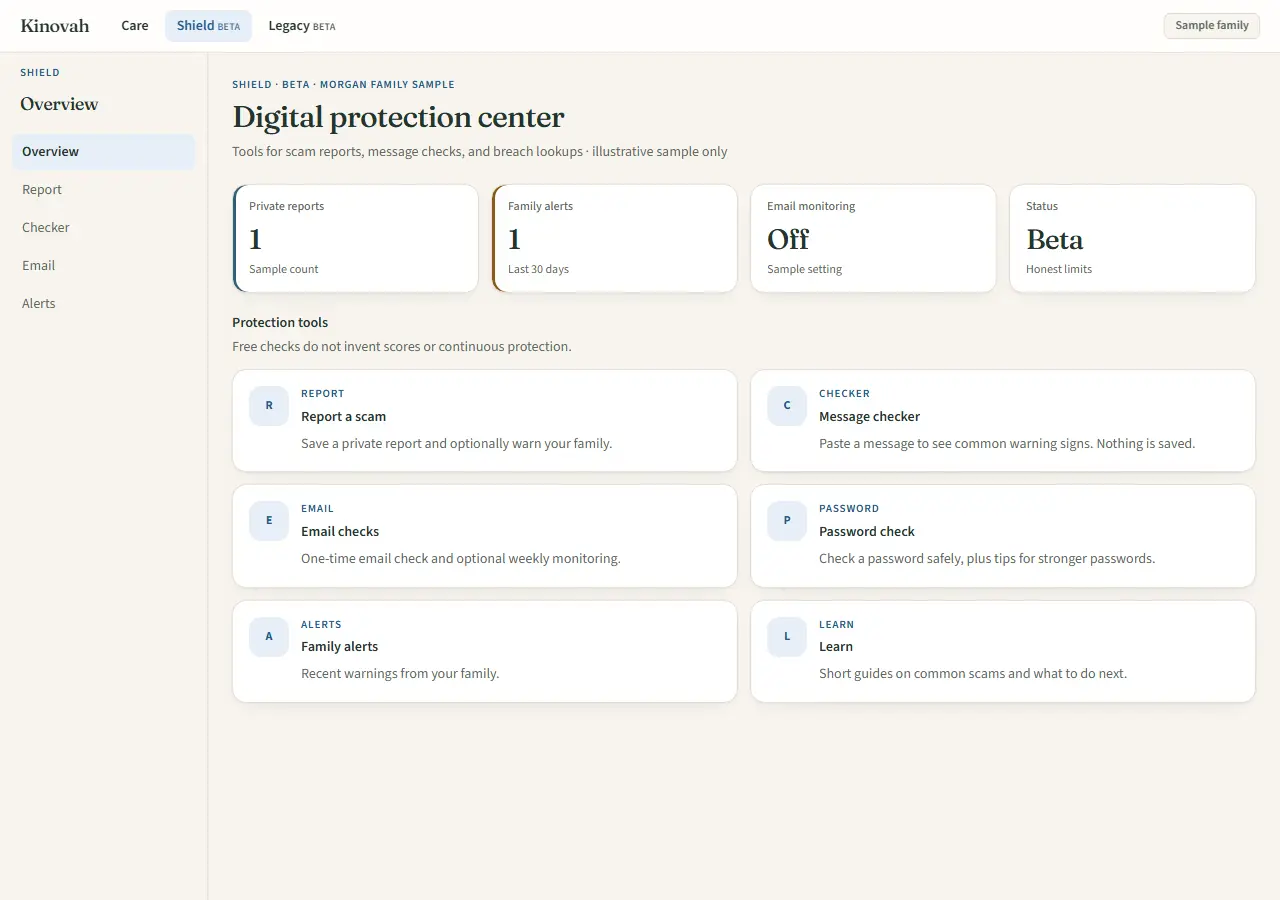
Shield is Kinovah’s family digital protection center (Beta). From the overview you can open scam reporting, the message checker, email and password checks, family alerts, and learn guides — one place to start when something feels off.
OverviewIllustrative example · Sample data - 02
Report a scam
Write down a suspicious call, text, or email for your own records, and optionally send a short warning to your family.
Save a private report with how it reached you, the scam type, what happened, and the date. Reports stay inside Kinovah for your records. They are not automatically sent to law enforcement or a government agency. Optionally warn your family with a short alert that includes the scam type and next step — not your private description.
Private report vs family warning
Your written description stays with your account. If you choose “Warn my family,” relatives in your family circle get a short alert. You can also review and manage reports later. Kinovah does not file a report with the police or regulators for you.
- 03
Check a suspicious message
Paste a worrying message to review common warning signs such as urgency, secrecy, and unusual payment requests. The text is not saved.
Paste a worrying call, text, or email into the message checker. Kinovah reviews it for common warning signs such as urgency, secrecy, unusual payment requests, codes or passwords, suspicious links, and impersonation. The pasted text is not saved. No warning signs — or matches — do not guarantee the message is safe.
How the checker works
The checker is rule-based guidance. It does not store what you paste, and it does not send the message to an outside analysis service. Use it to slow down and spot patterns — then decide whether to hang up, ignore, or report.
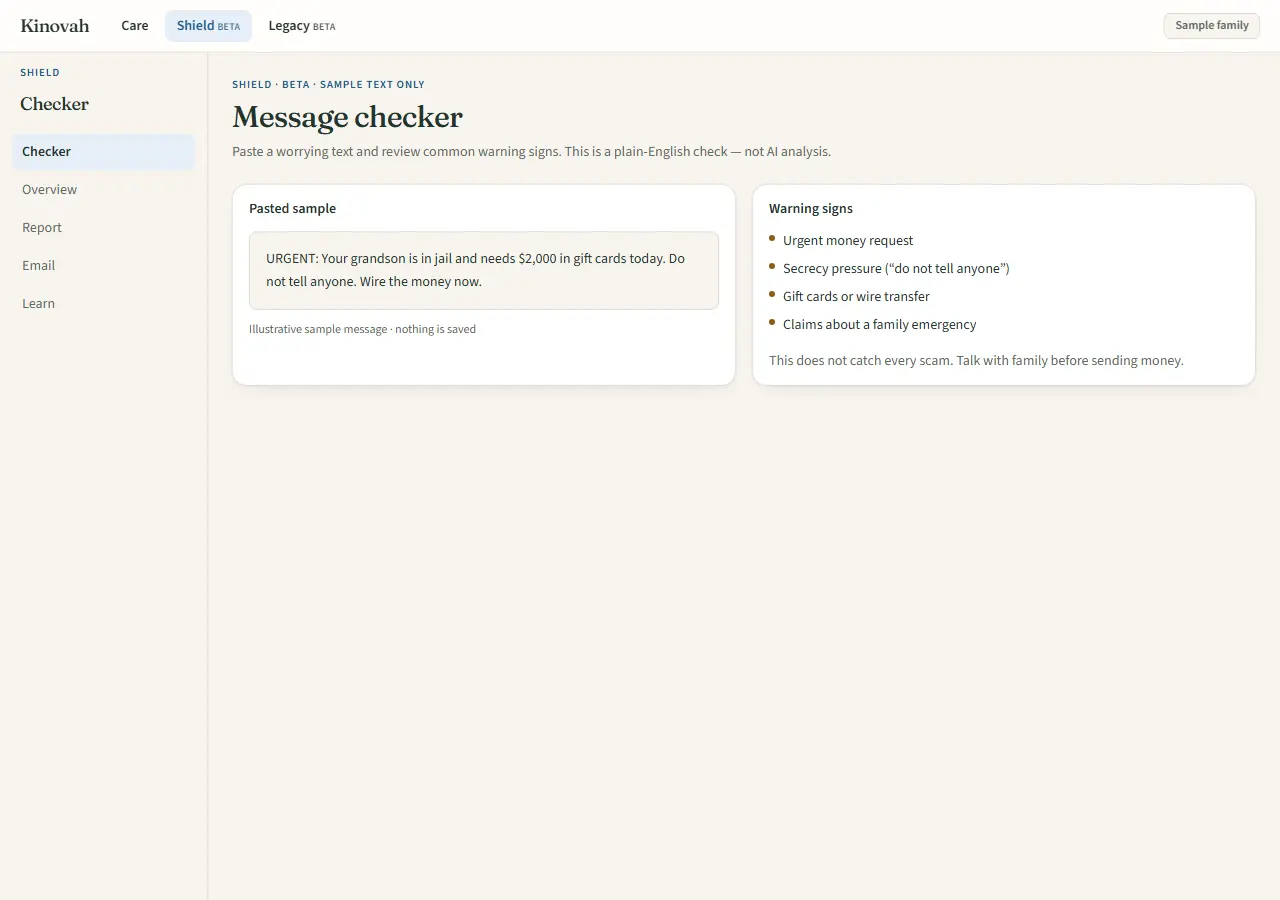
Message checkerIllustrative example · Sample data - 04
Check an email address
Check your own confirmed email against known breach data. Optionally turn on weekly monitoring for new breaches only. Results are not a safety guarantee.
Check your own confirmed account email against known breach data from Have I Been Pwned when available. A one-time check does not keep a history of the result. No known results is not proof that the address is safe. Optionally turn on weekly monitoring for newly reported breaches only, and turn it off anytime in Account → Notifications.
Own email only
An email check cannot look up an address that belongs to someone else. Results describe known breach listings when the service is available. They are information to act on — change passwords, turn on 2-step login — not a safety certificate.
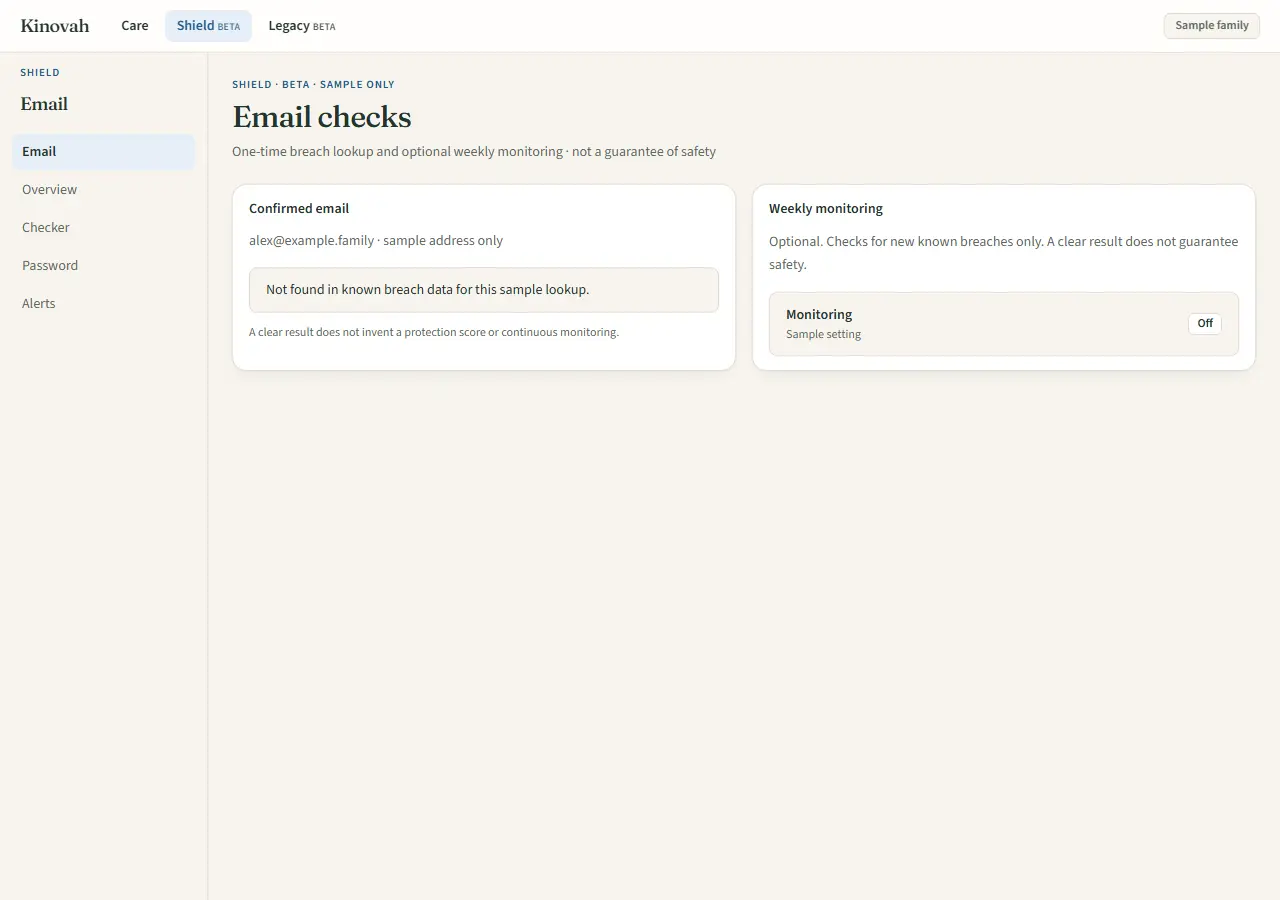
Email checksIllustrative example · Sample data - 05
Check a password
See whether a password has appeared in known breaches. The password is not stored, and it is not sent in full.
See whether a password has appeared in known breaches. Kinovah hashes the password, sends only the first five characters of that hash to the Have I Been Pwned range API (k-anonymity), and never stores the password or sends it in full. If it appears compromised, stop using it, choose a unique password, and turn on 2-step login where you can.
Privacy-preserving password check
The password travels over an encrypted connection to Kinovah’s server only long enough to run the k-anonymity lookup. The full password is never sent to Have I Been Pwned, and Kinovah does not keep it after the check.
- 06
Review family alerts
Review scam alerts shared inside your family circle so the people who help stay informed together.
Family alerts are short warnings shared inside your family circle — for example after someone reports a scam and chooses to warn the family, or shares a breach-related heads-up. They notify people about a risk type and a next step. They are not continuous monitoring of calls, texts, browsing, or accounts.
Alerts are intentional, not always-on
Someone in the family creates or triggers an alert when they choose to warn others. Shield does not watch your phone, inbox, or browsing in the background. Review alerts so helpers stay informed together.
- 07
Learn safer digital habits
Read plain-English guides on common scam types and where to report fraud. Education only — not legal advice.
Read plain-English guides on phishing, account security, passwords, suspicious links, and common scam types, plus where people often report fraud. This is education only — not legal advice, and not a guarantee of safety.


Legacy
BetaPrepare important digital information for the people you trust.
Kinovah Legacy (Beta) helps you organize documents and account lists in an encrypted vault, name trustees, and release only what you choose — when you authorize it.
- 01
Start your Legacy workspace
Begin organizing important digital information in one private planning space.
Open Legacy from the same Kinovah login. Legacy is in beta. Use the overview checklist to add vault files, list assets and documents, invite trustees, and prepare releases — always under your control.
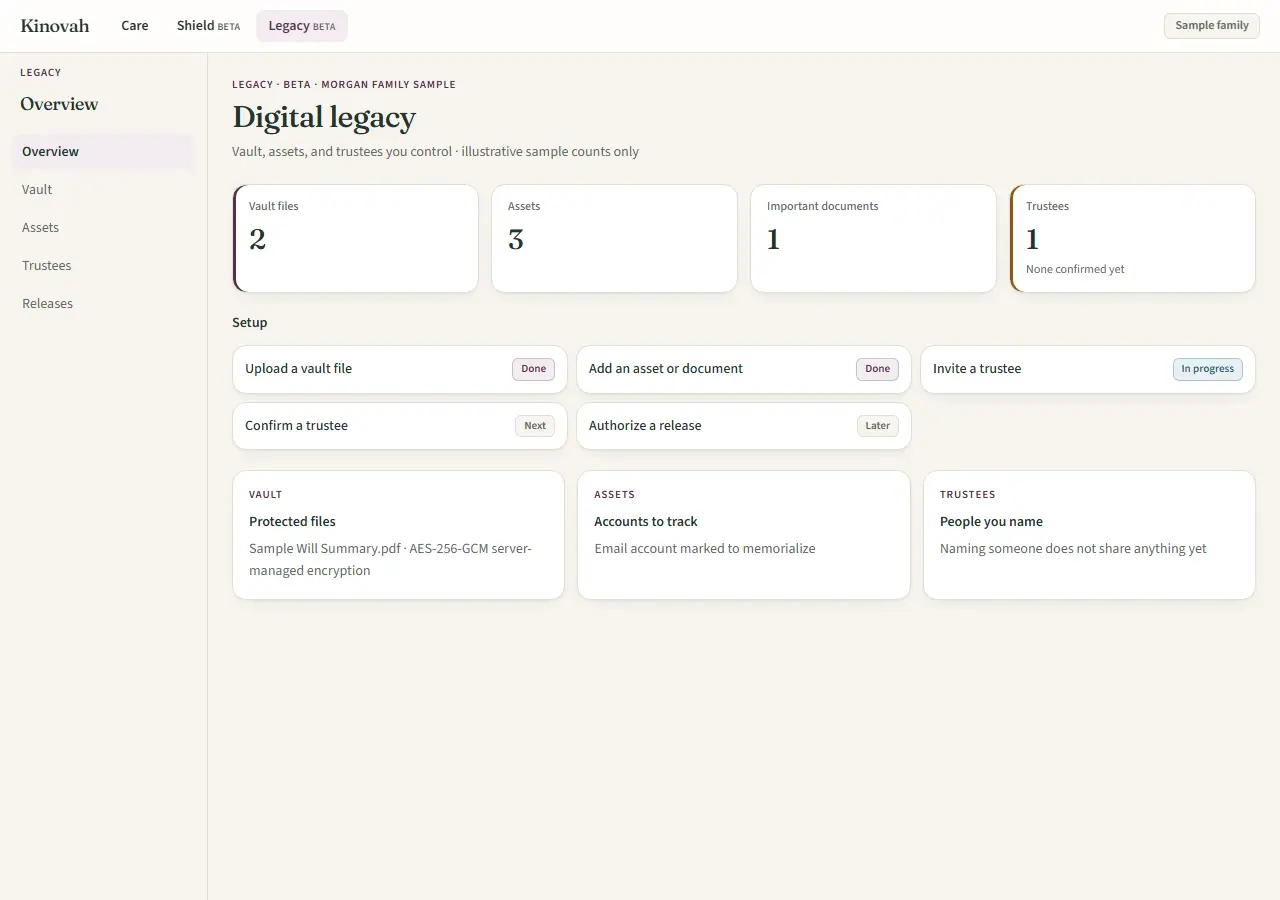
OverviewIllustrative example · Sample data - 02
Add important assets and documents
List the accounts, papers, and digital items that matter, and note what should happen later.
Record online accounts, websites, subscriptions, devices, and important papers. For each item, you can say what should happen later. Upload vault files as PDF, DOCX, PNG, JPEG, or TXT up to 4 MB. Prefer documents you are comfortable storing with server-managed encryption — see Security for how keys work.
What belongs here
Legacy is for organizing continuity information and files you choose to store. Other family members in Care cannot see your vault. Naming a trustee still does not share anything until you deliberately release it.
- 03
Organize the vault
Store selected files with server-managed encryption and clear access limits.
Vault files are encrypted at rest with AES-256-GCM before storage. This is not end-to-end encryption: Kinovah holds the server key so you — and any trustee you deliberately release to — can open a file. Files sit in private storage, not on a public link. Other family members cannot see them until you release them.
Honest encryption limits
Server-managed encryption protects files at rest and keeps them out of public links. Because Kinovah holds the key, this is not end-to-end encryption. Read the Security page for the plain-English details.
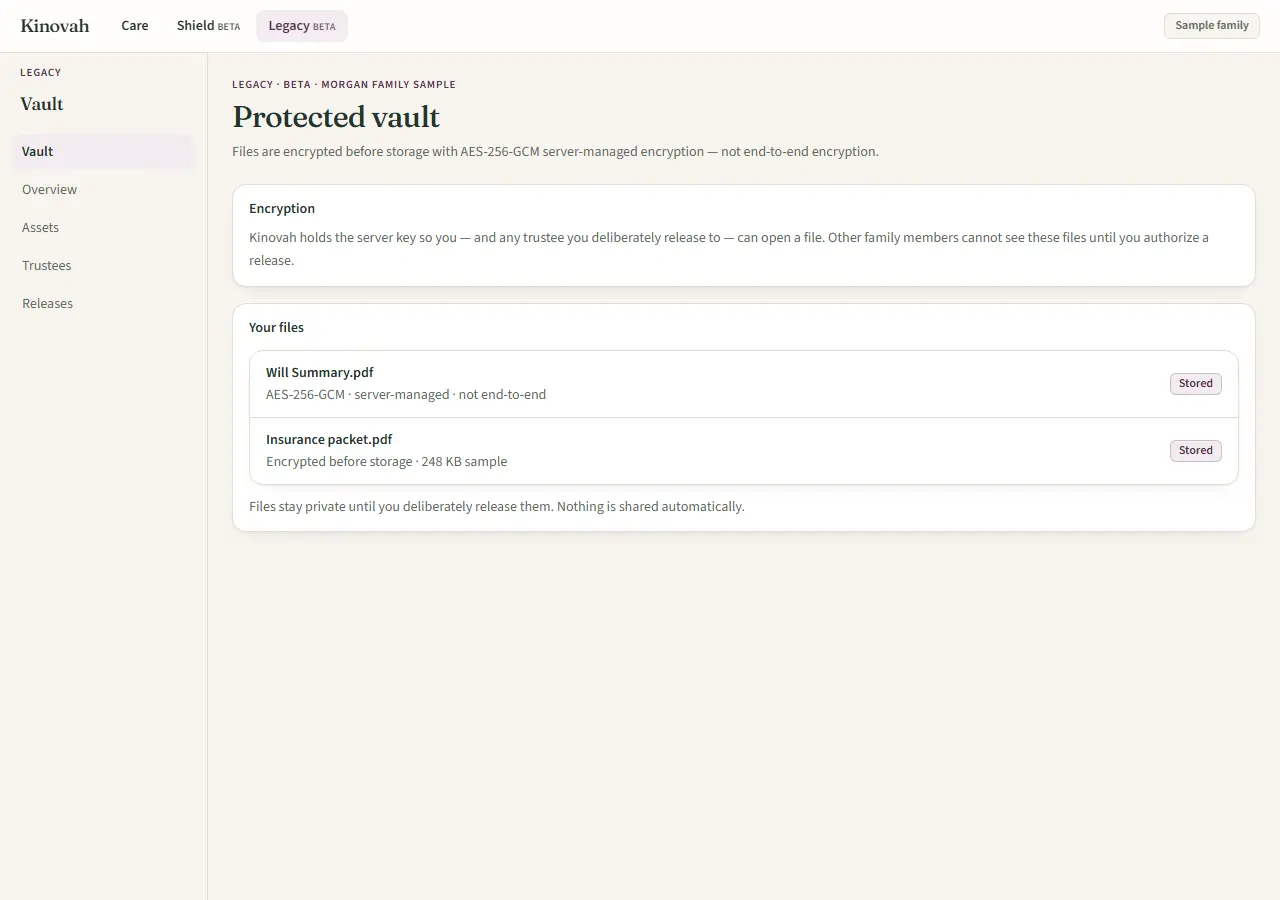
Protected vaultIllustrative example · Sample data - 04
Choose trusted people
Invite primary and backup trustees, then confirm the right person after they accept.
Name trustees by email and choose Primary or Backup as planning labels. They accept with their own Kinovah account and do not join your Care family. After they accept, you confirm it is the right person. Assigning a trustee does not automatically give them access to vault contents.
Primary and Backup are labels
Primary and Backup help you plan who you intend to rely on first. In this beta they do not automatically share anything. Access still requires invite, accept, confirm, and a deliberate release.
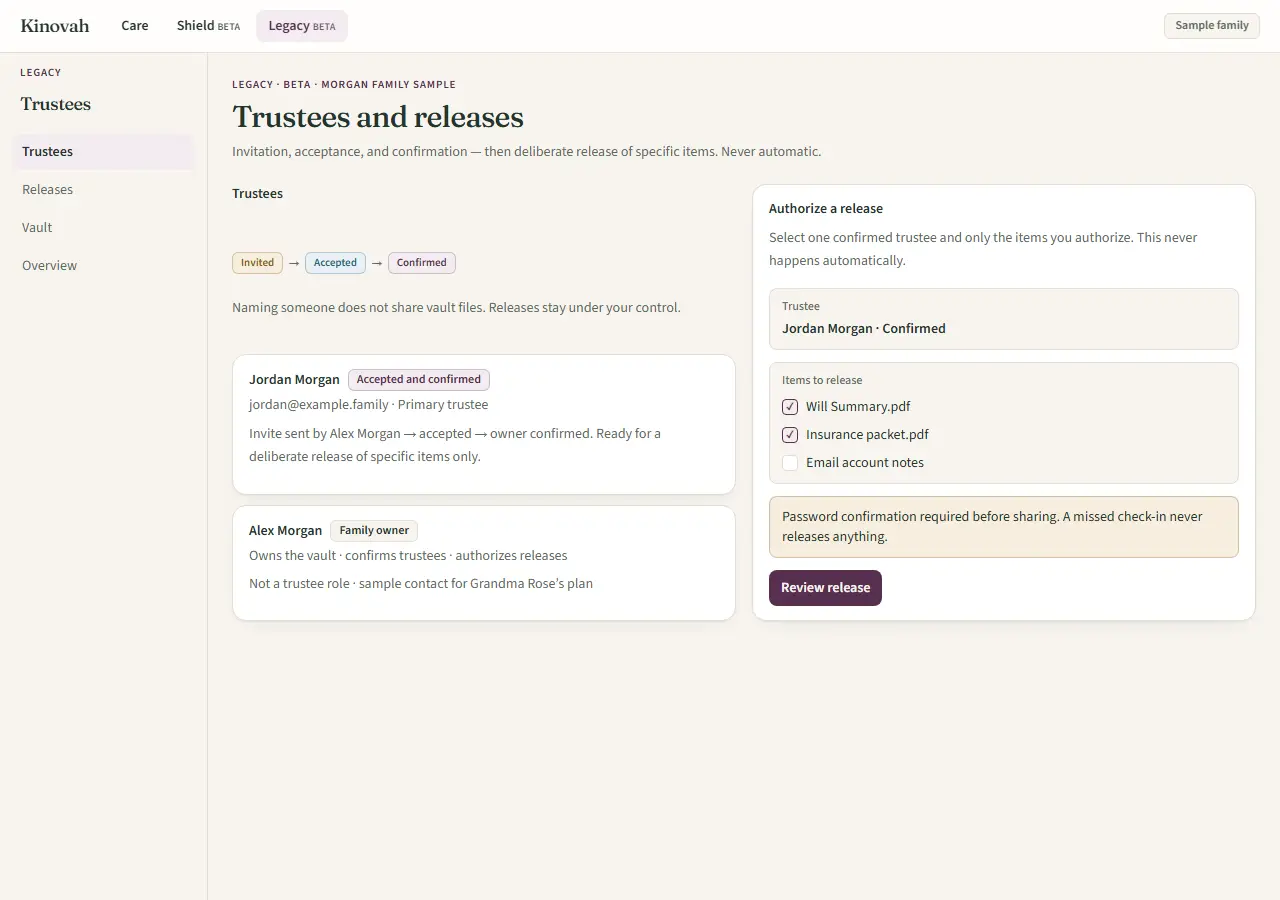
Trustees and releasesIllustrative example · Sample data - 05
Define release permissions
Choose who may see which items, and only after you review and authorize it.
Create a release for a confirmed trustee and select the assets, vault files, or documents they may see. Before anything is shared, you review the selection and enter your password. You can turn a release off at any time.
You choose what becomes visible
A release is item-by-item. Trustees see only what you include. Revoking a release removes their access to those items going forward.
- 06
Understand succession activation
In this beta, sharing happens when you deliberately authorize a release — not by automation.
Kinovah Legacy does not automatically release information on death, inactivity, or incapacity in this beta. Sharing uses owner-authorized release after invite, accept, and confirm. A yearly check-in reminds you to review your plan; missing a check-in never shares anything.
Safeguards in the current beta
Identity checks center on the invited email, trustee acceptance, your confirmation that the person is correct, and your password before each release. Access history shows when you shared something and when a trustee opened it.
- 07
Review and update your plan
Keep assets, documents, trustees, and releases current as life changes.
Return to Legacy to update lists, replace files, adjust trustee roles, revoke or change releases, and complete your yearly check-in. Your plan stays yours until you choose to share specific items.


What Kinovah does — and what it doesn't.
Care
Coordinates family care.
Does not replace medical professionals or emergency services.
Shield
Provides digital safety information and checks.
Does not guarantee protection from scams or breaches.
Legacy
Helps organize digital information and manage controlled access.
Does not automatically create a legally valid estate plan.
Ready to get started?
Create a free Kinovah account and explore the tools available for your family.
Free Early Access
No credit card required.